This page provides an overview of commonly used software, with limited instructions for using them.
Integrated Development Environment (IDE)
An IDE is required to complete many of the exercises in this workshop. Many of them could be completed in a simple text editor, however, an IDE that includes features such as version control with Git, environment management and a CLI would be useful. As such, the instructions herein often refer to Jupyter Lab. However, you can choose your own IDE, noting that the main requirements are dictated by the use of Jupyeter Notebook (*.ipynb) files:
ability to edit notebooks natively (i.e., not editing the raw JSON),
access to a Jupyter server and Python kernel for executing notebooks.
Jupyter Lab
To run Jupyter Notebooks we can use IDE’s as Jupyter Notebook or Jupyter Lab. Jupyter Notebook is a web-based interface that allows users to create and share documents with live code, visualizations, and narrative text in a linear format. Jupyter Lab, on the other hand, is a more advanced interface offering a flexible and modular environment with multiple panels, including notebooks, terminals, and text editors, providing a more versatile experience for interactive computing. I prefer to use Jupyter lab.
GitHub web-based editor
The github.dev web editor makes it possible to edit files directly in the browser. This is an excellent option if you are unable to install software on your computer. To activate it, simply navigate to a GitHub repository and press .. It’s really that easy!
You can find out more about this useful tool here.
VSC
A popular code editor is Visual Studio Code (VSC). It allows you to program in different languages, where it recognizes the commands in that language and adjusts the FONT so that it becomes better readable. Moreover, it allows you to install various packages (such as Jupyter Notebook). It also integrates GIT and allows to code using Co-Pilot, an AI pair programmer. We advise to use VSC as it allows for multiple programming languages.
Terminal
The terminal in VSC is a tool that lets you interact with your computer’s command line directly within the editor. It’s used to run commands, scripts, or programs without leaving the coding environment. For example, you can compile code, run a development server, install dependencies, or manage files. It’s very helpful for developers because it allows you to code and execute commands in one place, streamlining your workflow.
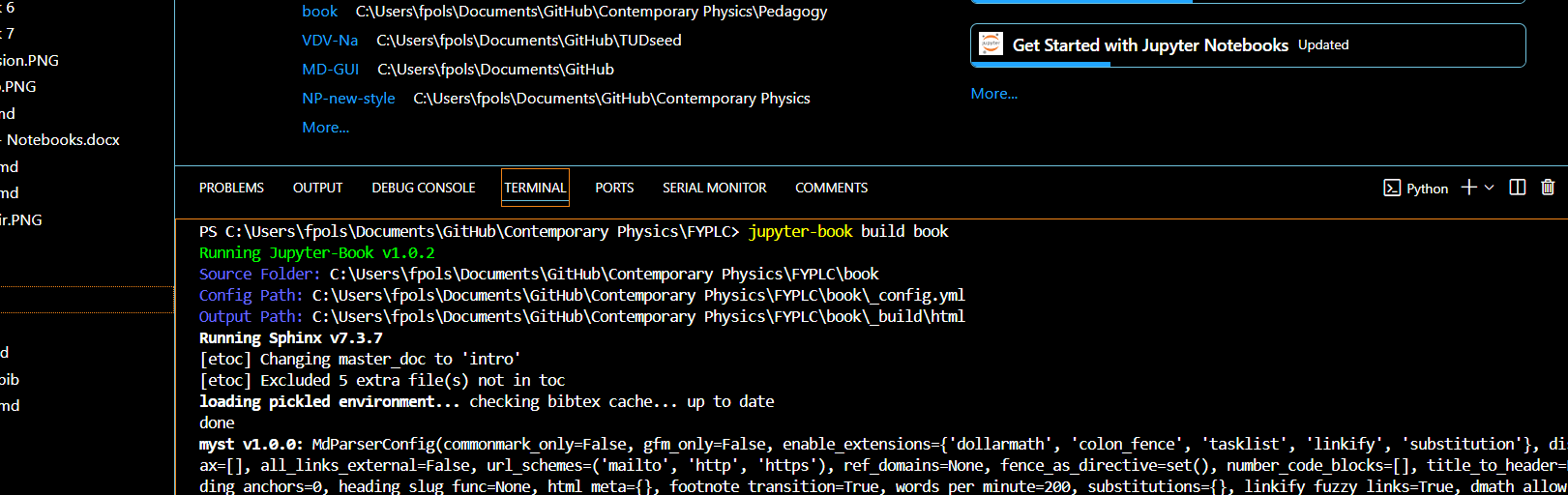
Figure 1:The VSC terminal to interact with the computer using the command line
Extensions
Extensions in Visual Studio Code (VSC) are powerful add-ons that enhance the functionality of the editor by providing additional features, tools, and support for various programming languages, frameworks, and technologies. Extensions allow you to customize and tailor VSC to suit your specific development needs.
How to Install Extensions:
Access Extensions View:
Click on the Extensions icon in the Activity Bar on the side (or press Ctrl+Shift+X / Cmd+Shift+X).
Search for Extensions:
In the Extensions view, you can search for the name or keywords related to the extension you want to install.
Install the Extension:
Click the Install button on the desired extension, and it will automatically be added to VSC.
Manage Installed Extensions:
You can view, enable, disable, or uninstall extensions from the same Extensions view.
Popular Extensions in VSC:
Python: Provides linting, debugging, IntelliSense, and more for Python development.
Jupyter: Provides support for Jupyter notebooks within VSC.
Arduino: Provides support for programming in Arduino.
Code Spell Checker: Has a great spelling checker, also available for Dutch
Github Copilot: Your AI pair programmer. Helps you in writing code.
LaTeX workshop: LaTeX coding, preview, compiling.
MyST-Markdown: The official Markdown syntax extension
Virtual Environment and Dependencies
It is assumed that you are able to create and activate a virtual environment in order to complete this workshop using a personal computer. As the primary tools are Python packages available using pip, the choice of environment manager is somewhat trivial. To keep things simple we suggest using Python venv or Conda.
Python’s venv is used in the GitHub Actions workflows.
Python Dependencies
Python dependencies are managed in file requirements.txt, the contents of which are included here:
jupyter-book>=2.0.0
jupyter
matplotlib>=3.10.7
Program 1:Python dependencies in file requirements.txt
Note that only jupyter-book is needed for building the book as described in most of the lessons in this workshop. The remaining packages are for the executable content lesson, which requires editing and executing Jupyter Notebooks (*.ipynb files). In addition, jupyter is a metapackage that includes a number of other commonly used packages (e.g., Jupyter Lab, IPython, etc.): it is included here to cover the range of preferences and IDE’s used by workshop participants; many of these are described briefly in the table below. For each individual participant, a smaller subset of packages could be used in practice.
To install these dependencies ensure requirements.txt is in your working directory and run pip install -r requirements.txt.
| Package | Description |
|---|---|
| jupyter-book>=2.0.0 | Tool to build publication-quality books and documentation from Jupyter notebooks and Markdown. |
| jupyterlab | Web-based interactive development environment for notebooks, code, and data. |
| ipykernel | IPython kernel for Jupyter, enables running Python code in notebooks. Necessary for VSC to edit and execute notebook files. |
| ipywidgets | Interactive HTML widgets for Jupyter notebooks and JupyterLab. |
| jupyter | A metapackage that requires jupyterlab, ipywidgets and ipykernel, amongst other packages. |
| mystmd | MyST Markdown support for Jupyter Book / Sphinx. |
| jupyterlab_myst | JupyterLab extension to render MyST Markdown and improve notebook/Markdown integration. |
| numpy | Core library for numerical computing with arrays and linear algebra. |
| matplotlib | 2D plotting library for generating figures and visualizations. |
| scipy | Scientific computing library. |
PDF Generation with Typst
For this template we use Typst to produce a high quality PDF (explained in detail as part of the PDF Output lesson). If you want to create PDF’s locally, you’ll have to install Typst. The Typst installation instructions provides several options to install Typst: we strongly recommend using the latest releases.
If you get a confusing error, a good first step is to upgrade your version of Typst.